Creating an Empty Project Shell
We have added some optional steps here if you plan to track your changes with Git. This is highly recommended, as it will:
- Ensure that you do not lose your work
- Allow you to track what changes were made to the codebase at what times
- Revert to a previous version of the code if needed
- Share your work with others
If you choose not to use Git, simply skip to the next page.
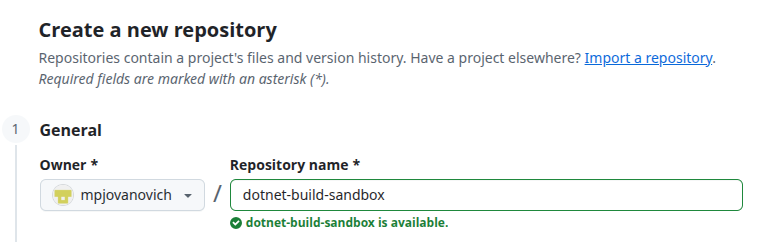
Create a New Git Repository
Each project should have its own Git repository.
Open your Terminal
After creating the repository, it exists on the remote server. To work on the project we need to clone it to our local machine.
Open up the terminal in your Operating System. The terminal is the text based interface used to run commands. This will be:
- PowerShell or Git Bash on Windows
- Terminal on macOS (which runs zsh)
- Terminal on Linux (which runs bash)
Clone the Repository
Navigate to the parent directory of the project you want to create and run the git clone command. You must provide the URL of the repository to clone, which should be visible on page after creating the repository.
Cloning an Empty Repository
You will get a warning message about cloning an empty repository. This is expected and can be ignored.
Open the Project in Visual Studio Code
Change into the project directory and open the project in Visual Studio Code.